
Payouts and Stripe Connect
Zelph uses Stripe Connect to move money — paying retailers for what they collect, paying suppliers for the items they fulfil, and paying sellers for stock they list on a retailer’s network. This guide explains the flow of funds and how payouts are triggered.
The role of Stripe Connect
Stripe Connect is Stripe’s platform-payments product. Every party in Zelph that needs to receive money has a Stripe Connect Express account linked to their Zelph workspace.
- Express means Stripe handles the heavy lifting: KYC, identity verification, bank-account collection, and tax forms — through a Stripe-hosted form.
- You don’t enter bank details into Zelph directly. You complete a short Stripe onboarding flow when you first need to receive funds.
Setting up your Stripe Connect account
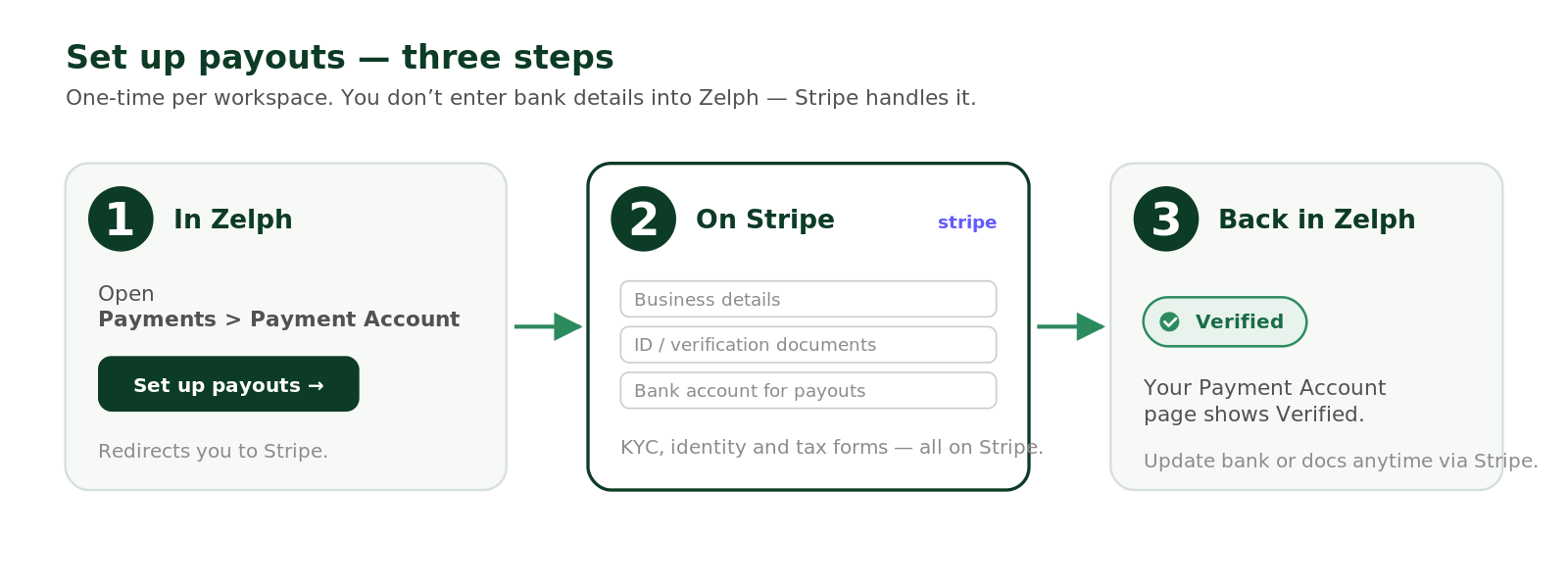
- Go to Payments > Payment Account in Zelph.
- Click Set up payouts. You’ll be redirected to Stripe to:
- Confirm your business details.
- Upload ID and any required verification documents.
- Add the bank account you’d like to be paid to.
- Once Stripe approves your account, you’re returned to Zelph and your Payment Account page shows Verified.
This is a one-time setup per workspace. You can update bank details or verification documents anytime via the Stripe-hosted dashboard.
Flow of funds: Retailers and Suppliers
When a retailer sells a supplier’s product through their Shopify store:
- Customer pays the retailer. The customer’s card is charged via Shopify Checkout. The full amount lands in the retailer’s own Stripe account.
- Zelph calculates the supplier portion. The order is broken down into supplier commission, shipping cost, taxes, and Zelph’s fees.
- Zelph charges the retailer for the supplier portion. Zelph debits the payment method on file in the retailer’s Zelph billing settings.
- Zelph pays the supplier. The supplier portion is transferred into the supplier’s Stripe Connect account. The retailer keeps their commission and any tax they collected.
See Getting Paid as a Retailer for the retailer view, and Tracking Past Payments for the line-item breakdown.
Flow of funds: Sellers (Seller Network)
When a customer buys a Seller Network item from a retailer’s store:
- Customer pays the retailer. Same as above — Stripe Checkout, retailer’s Stripe account.
- Zelph calculates the seller’s payout. Starting from the sale price, Zelph deducts:
- Handling fee — set by the seller’s Seller Level (e.g. 15% commission).
- Payment processing fee — typical card-acquirer rates (e.g. 2.5% + 30p).
- Shipping fee — set by the seller’s Seller Level (e.g. a flat £5).
- What remains is the seller’s net payout.
- Zelph initiates the transfer. Funds move into the seller’s Stripe Connect account via Stripe’s payout API.
- Stripe sends the money to the seller’s bank. Typical settlement to the bank is 2 business days from the payout initiation.
Payout cadence
Zelph uses manual payout scheduling — meaning we control when payouts go out, not Stripe’s automatic daily schedule. This lets us batch transactions efficiently and align payouts with order completion (rather than at the moment of sale).
In practice, payouts to sellers are initiated regularly once funds are confirmed. You’ll see each payout move through these statuses:
- Pending — Zelph has calculated the payout, waiting for confirmation.
- Processing — Stripe is moving the funds.
- Succeeded — funds have landed in your bank account.
- Failed — something went wrong; the payout is held and we’ll be in touch.
- Cancelled — the payout was cancelled before it could complete.
What you see in the dashboard
Under Payments > Payout History, you’ll see every payout that’s been initiated to you. For each one:
- Date initiated
- Amount
- Status
- The orders the payout covers (so you can reconcile to specific sales)
- Any fees that were deducted
Under Payments > Billing History, retailers also see the inbound side — the charges Zelph has made to their saved card or bank account.
Fees, holds, and minimums
- Zelph’s fees are deducted at payout calculation time. You don’t pay them separately — they come out of the gross sale.
- Stripe’s standard hold applies (typically 2 business days from payout initiation to funds in your bank).
- No platform-level minimum for payouts in Zelph. Stripe may have its own minimum for some currencies and regions.
If something doesn’t look right
- Check the Payout History dashboard first — the status will tell you where the payout is in its journey.
- Failed payouts most commonly indicate stale bank details. Update them via the Stripe-hosted dashboard link from your Payment Account page.
- If a payout is missing entirely, contact support@zelph.com with the order reference and we’ll investigate.
Related guides
- Getting Paid as a Retailer
- Tracking Past Payments
- Seller Levels — how handling fees and shipping fees are configured.